Toddler Mode
for Mac
Kid-proof your MacBook in one click. Your toddler sees colorful letters and fun sounds. Your Mac stays completely safe.
macOS 13+ • Apple Silicon & Intel • Free & open source
Your toddler lunges for the keyboard. Suddenly you've sent a half-written email, opened 14 browser tabs, and enabled VoiceOver.
Toddler Mode blocks everything.
Cmd-Tab, Mission Control, trackpad gestures, volume keys — nothing gets through. Just colorful fun.
4 Play Modes
Free Play
Colorful bouncing letters, shapes on click, and a rainbow cursor trail
Game
Tap floating bubbles to pop them with a running score counter
Character
A friendly creature follows the mouse, jumps on key presses, and leaves paw prints
Chill
Gentle drifting emoji, soft colors, and a warm glow — perfect for winding down
What your toddler sees
Every key press creates something fun
Simple, friendly interface
Pick a mode, click Lock Now, done
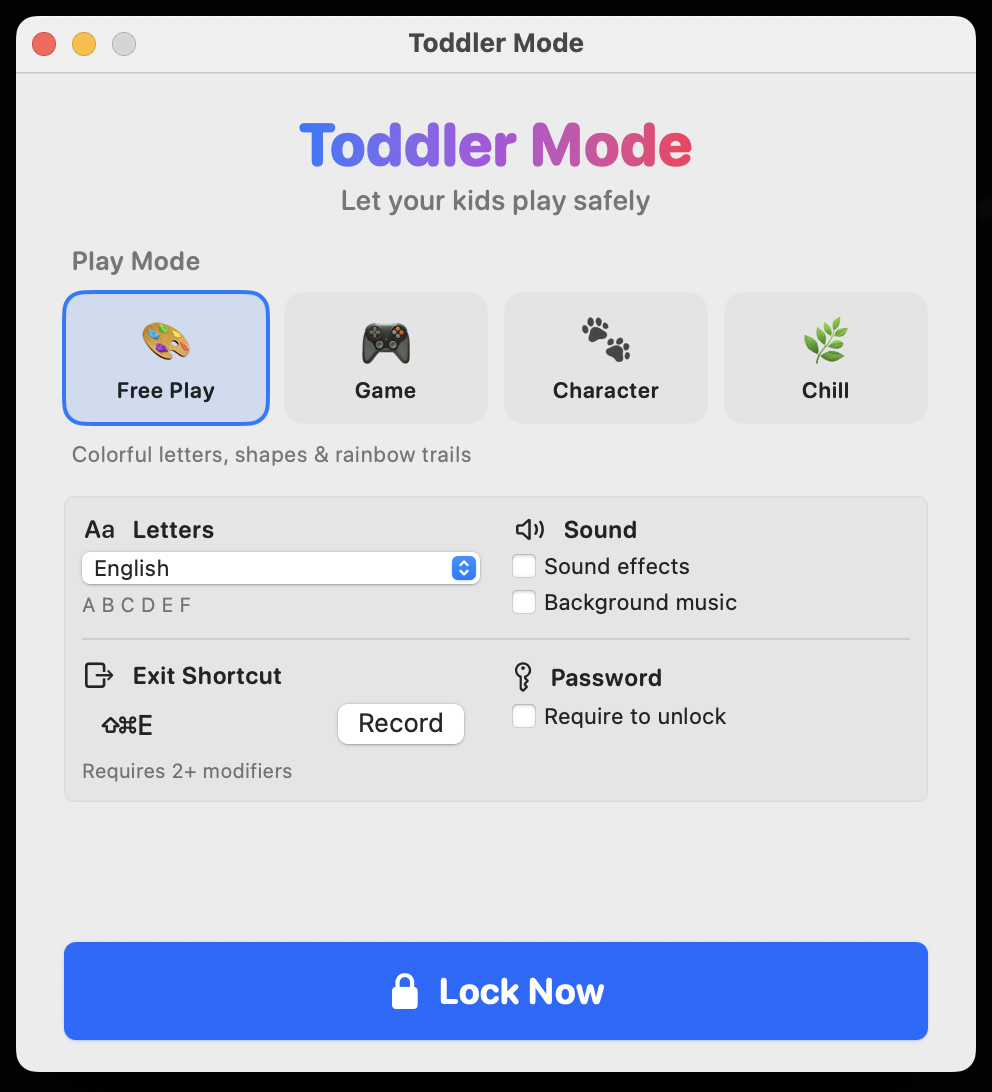
Settings window
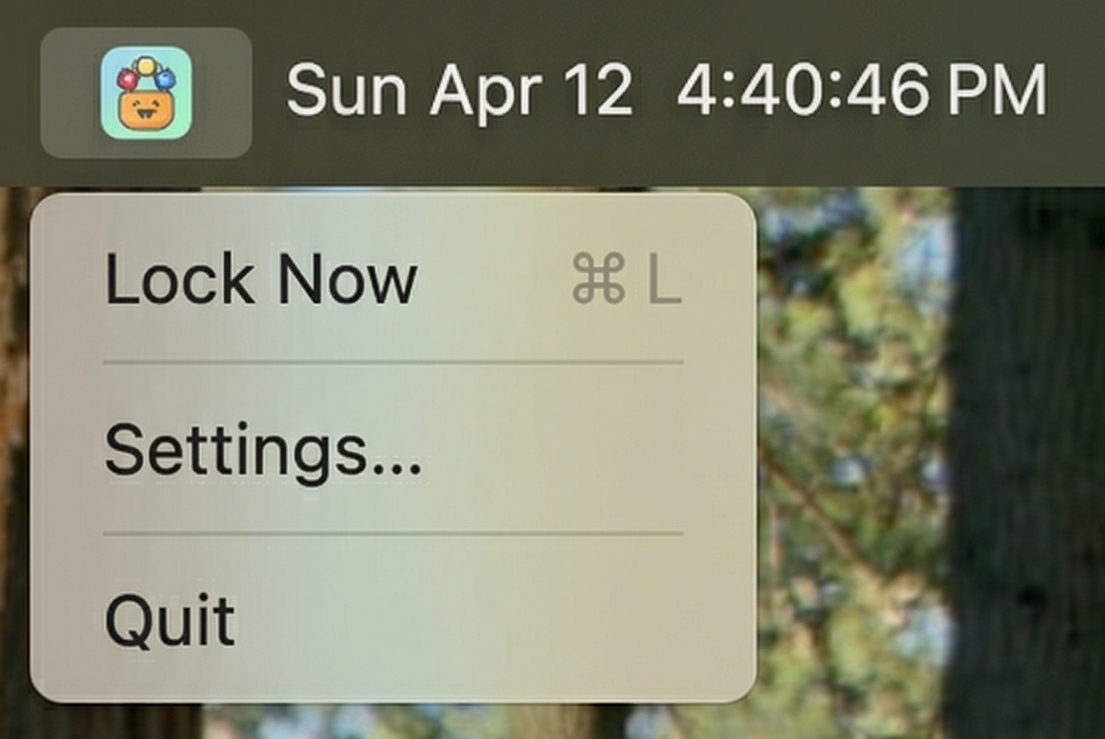
Quick lock from the menu bar
Built for parents
Blocks absolutely everything
Cmd-Tab, Mission Control, volume keys, trackpad gestures, hot corners — your toddler can't escape or break anything.
Pleasant sounds
Every key plays a pentatonic tone that always sounds musical. No jarring beeps.
Multi-language support
Choose from English, Arabic, Chinese, Hebrew, Japanese, or Korean characters.
Optional password protection
Set a password so only you can unlock. Stored securely in macOS Keychain.
Free, forever
No subscription, no ads, no data collection, no account needed. Open source and MIT licensed.
Up and running in 30 seconds
Download
Grab the DMG and drag to Applications
Allow access
Grant Accessibility permission when prompted
Pick a mode
Choose from Free Play, Game, Character, or Chill
Lock & play!
Click Lock Now and hand it to your toddler
Frequently Asked Questions
Press and hold ⌘ ⇧ ⌃ ⌥ + P all together, then enter PIN 0000.
This emergency unlock is always available — toddlers can't press 4 modifier keys at once, so it stays safe.
How do I lock my MacBook keyboard for my toddler?
Download Toddler Mode for Mac, grant Accessibility permission, pick a play mode, and click Lock Now. Your toddler sees colorful animations while all keyboard shortcuts and system controls are blocked.
Can my toddler accidentally close or exit the app?
No. Toddler Mode blocks all keyboard shortcuts including Cmd-Tab, Cmd-Q, Mission Control, and trackpad gestures. The only way to exit is a special shortcut that requires pressing 2 or more modifier keys simultaneously, which toddlers cannot do. You can also add a password for extra safety.
Does it work on MacBook Air, MacBook Pro, and iMac?
Yes. Toddler Mode works on any Mac running macOS 13 (Ventura) or later, including MacBook Air, MacBook Pro, iMac, Mac Mini, and Mac Studio, with both Apple Silicon and Intel processors.
How do I prevent my baby from pressing buttons on my Mac?
Install Toddler Mode for Mac. It takes over the full screen and blocks every keyboard shortcut, trackpad gesture, and system control. Your baby can mash keys freely and only see fun colorful letters and hear pleasant sounds. It's the easiest way to baby-proof your MacBook keyboard.
What is the default exit shortcut?
The default exit shortcut is Cmd+Shift+Esc (⇧⌘Esc). You can change it to any key combination in settings — it just needs to include 2 or more modifier keys so your toddler can't trigger it by accident.
I forgot my exit shortcut or password. How do I unlock?
There's an always-available emergency unlock. Press and hold ⌘ Cmd + ⇧ Shift + ⌃ Ctrl + ⌥ Option, then press P. Enter PIN 0000. This works regardless of your settings — bookmark this page so you can find it again if needed.
Does Toddler Mode work on Windows or iPad?
No — Toddler Mode is a Mac-only app. It requires macOS 13 (Ventura) or later. It's not available for Windows, iPad, or Chromebook. For Windows, you might try Toddler Keys. For iPad, try Baby Keyboard.
Is Toddler Mode safe? Will it damage my Mac?
Completely safe. The app only intercepts input events and draws animations on screen. It doesn't modify system files, install drivers, or run in the background when not locked.
Is there a keyboard lock app for Mac?
Yes — Toddler Mode is a free, open-source keyboard lock app for Mac. It blocks all keyboard input, trackpad gestures, and system shortcuts so kids can safely play without affecting your computer.
We'd love to hear from you
Bug report, feature request, or just saying hi
Ready to kid-proof your Mac?
Free download. Takes 30 seconds to set up.